
You can buy a standard license here : Rombo Arnold Imagers
This document provides an overview of the post-processing shaders available in the Rombo Tools suites. These shaders, known as (Arnold) Imagers, are applied to the final rendered image to add cinematic and stylized effects. Each shader offers a range of parameters to fine-tune the look and feel of your renders.
Available Imagers
Introduction
Think of these imagers not as single, isolated effects, but as building blocks. One of the most powerful feature is that they are all chainable, meaning you can link them together in a sequence to create incredibly detailed and customized looks. The order matters, as each imager processes the output of the one before it. This allows for a flexible, non-destructive workflow where you can build up complexity layer by layer.
Example Workflows
By chaining imagers, you can create sophisticated post-processing pipelines. For example:
- Cinematic Color Grading: Start with a Film Tonemapper to correctly map your HDR render, then chain a Color Correct imager to fine-tune the temperature, tint, and contrast for a specific mood.
- Full Darkroom Setup: You can emulate a complete photographic process by chaining multiple imagers. You might use Film Exposure -> Film Tonemapper -> Film Emulation -> Lens Effects -> Film Grain to achieve a realistic, analog film look.
- Complex Lens Flares: Don't be limited to a single flare. You can chain multiple lens flare imagers, like an Anamorphic flare combined with a Multi-Iris flare, to produce unique and complex optical effects that no single imager could create alone.
- Artistic Style Combinations: Stylistic imagers can be combined for unique results. For instance, applying a Kuwahara filter *before* a Pointillism imager is highly effective. The Kuwahara simplifies the source image into painterly shapes, which allows the Pointillism filter to create cleaner, more defined dots for a stronger artistic statement.
How Imagers are Applied
It's also important to understand that not all imagers are processed at the same time. This is done to give you both real-time feedback and final quality accuracy.
- Real-time Imagers: Effects like Color Correct, Sharpen, and all Lens Flare types are applied at every progressive rendering pass. This gives you instant feedback on how your adjustments are affecting the image as it refines.
- End-of-Render Imagers: More computationally intensive effects, such as all Blur and Stylistic (e.g., Sketch, Watercolor) imagers, run only once at the very end of the rendering process. This is because they need the complete, final frame buffer to analyze the image properly and produce the highest quality result.
Installation Guide
Let's get these powerful tools integrated into your workflow. We've designed the installation to be as quick and painless as possible, because we believe you should spend your time creating, not configuring! To ensure a smooth setup, we've created a single, comprehensive guide that walks you through the process for all supported digital content creation (DCC) applications.
Please look for the README.md file included in your download package. It contains detailed, step-by-step instructions for Cinema4D, Maya and Houdini.
Demo Scenes Included
To help you hit the ground running and see these imagers in a real-world context, we've put together a collection of nice demo scenes (many images you see here are directly from them!). These files are designed to be a practical starting point, showcasing ideal setups and creative combinations that you can explore, modify, and learn from.
Below some example, there're many more and we keep adding them.


Ready for Your Favorite Application
Our demo scenes are grouped by the techniques they unlock, allowing you to master specific effects. Here’s a breakdown of what’s available:
Photographic Defocus Blur
- This scene is built to a real-world scale, making it the perfect playground for mastering the Z-depth display workflow. It unlocks the ability to achieve a natural, cinematic depth-of-field effect with predictable, photographic controls.
- Available for: Cinema 4D, Maya
Post-Process Motion Blur
- Jump right into the action with this pre-configured animation. It includes all the necessary AOVs and render settings, letting you focus on tuning the shutter speed and blur intensity without worrying about the complex technical setup.
- Available for: Cinema 4D, Maya
Complex Lens Flares
- Explore a scene with multiple light sources of varying intensity and color. It's the ideal environment for testing the automatic light detection, debugging the results, and learning how to chain different flare imagers together for unique looks.
- Available for: Cinema 4D
Stylized Artistic Effects
- Chalk Style: A scene designed to showcase how to achieve a soft, textured chalk-on-board look, perfect for understanding the contour and sampling parameters. (Cinema 4D)
- Crosshatch & Sketch Styles: These scenes demonstrate how to create convincing hand-drawn looks, from clean architectural lines to more expressive, cross-hatched shading. They are perfect for learning how to balance outlines and internal details. (Cinema 4D, Maya)
- Pointillism Style: Discover how to control dot size and variation to transform a render into a piece of pointillist art. This scene is great for learning how to prep an image with other imagers (like Kuwahara) for the best results. (Maya)
Houdini demo scenes are coming very soon.
Bilateral Blur

A bilateral filter is a non-linear, edge-preserving, and noise-reducing smoothing filter. It replaces the intensity of each pixel with a weighted average of the intensity values from nearby pixels, but does so while respecting strong edges. This is useful for blurring an image while keeping the edges sharp.
Parameters
Defocus Blur

This shader simulates the effect of a camera lens being out of focus, which reduces the sharpness and contrast of the image. It's commonly used to create a depth-of-field effect where some parts of the image are sharp while others are blurred.
Workflow
To simulate a realistic depth-of-field effect, the defocus imager needs to know how far every object is from the camera. It does this by using a Z-depth AOV. For your convenience, the imager automatically generates this data for you. The key to mastering this effect is to use the built-in debug view to set your focus point precisely *before* dialing in the final blur amount.
The Tuning Workflow: Using the Z-Depth Display
To accurately set your focus, you must first visualize the scene's depth. The Zdepth display parameter is your most important tool for this setup phase.
Follow these steps for a perfect focus setup:
- Enable Debug View: Turn on the Zdepth display parameter. Your render will switch to a simple grayscale map.
-
Interpret the Map: This map tells you what is in focus.
- Black Areas: These parts of the image are perfectly in focus.
- Gray to White Areas: These regions are out of focus. The whiter an area is, the further it is from the focal plane and the more blur it will receive.
- Adjust Focus: Now, tweak the Focus Distance and Scene Scale parameters. Your goal is to make the black, in-focus area perfectly cover your subject.
- Disable Debug View: Once you are satisfied with the focus region, turn off the Zdepth display to see the actual blur effect applied to your render.
Dialing in the Final Look
After setting the focus, you can fine-tune the intensity of the blur. The amount of blur is highly dependent on your scene's overall scale.
- Don't be surprised if you need to use large values for the Blur Scale. Depending on your scene, values of 500 or even higher might be necessary to achieve a strong, cinematic defocus effect.
Focus Parameters
Bokeh
Aberration
Settings
Motion Blur

This effect simulates the blur that occurs when an object moves relative to the camera during exposure. It is used to make animations and visual effects look more realistic and appealing. For real-time computation, we use a 2.5D approach. While the effect works in screen space (2D), it incorporates depth information and motion data to create more sophisticated and realistic blur patterns.
Setting Up the Imager
Unlike other effects, post-process motion blur needs precise data from the renderer to know which direction and how fast pixels are moving. This is achieved through specific AOVs (Arbitrary Output Variables) and render settings. Following this setup guide is essential for the imager to function correctly.
Required Render Setup
To generate the necessary data, you must configure your render settings correctly. The process involves adding a specific AOV and adjusting a key motion blur setting.
Follow these steps in your Arnold render settings:
- Add the Motion Vector AOV: The imager needs a motionvector AOV to calculate the direction and speed of objects. You must add this manually from your renderer's AOV list.
- Enable Instantaneous Shutter: In your main Arnold render settings, find the Motion Blur rollout and enable the Instantaneous Shutter option. This ensures the motion vectors are calculated correctly for a post-processing workflow, without applying any blur directly in the render itself.
- Z-Depth AOV (Automatic): You do not need to add a Z-depth AOV manually. The imager will handle the creation of this pass for you automatically.
- Cinema4D: There you have also to enable in the IPR Window -> Render -> Render All AOVs, then also click the Button -> Enable/Disable Motion Blur. Finally, in Arnold Render Settings, once you already added the romboBlurMotion Imager, go to the Imager tab -> Selection -> AOVs and set it to All. This is c4dtoa quirkiness, nothing to do with Rombo Imagers setup.
Verifying Your Setup
Once you've configured your render, it's a good practice to verify that the data is correct before you start tuning the blur effect.
- Visualize the Data: Use the Display parameter within the imager to switch between the final result and the raw AOVs. This allows you to see the `motionvector` and `Z-depth` passes directly, confirming they are being generated as expected.
- Check for Errors: The imager performs consistency checks on the AOV data it receives. Keep an eye on your render log or console output. If there are any issues, such as missing AOVs or incorrect data, the imager will print warnings or errors to help you diagnose the problem.
Parameters
Color Correct

Provides a comprehensive set of tools for adjusting the colors and tones of the final image. It works in linear color space to maintain accurate color relationships and prevent unwanted artifacts during adjustment. These real-time corrections allow artists to quickly iterate on the visual style without requiring expensive re-rendering of the entire scene.
Luma
Color
Tone
LUT
Transform
Film Emulation

This shader simulates the look of various types of photographic film, allowing you to give your renders a distinct analog feel. Film emulation goes beyond simple color grading by replicating the complex photochemical processes that define how different film stocks respond to light. Each film type has its own characteristic color response curves, grain structure, and tonal behavior that developed from decades of chemical engineering and artistic preference. The shader models these unique properties by implementing film-specific tone curves that compress highlights and lift shadows in ways that match the silver halide chemistry of actual films.
Parameters
Film Exposure

Simulates the exposure settings of a real camera, giving you control over the brightness of the image using familiar photographic terms. The exposure is determined by the interplay of F-Stop, shutter speed, and ISO.
Parameters
Film Grain

Adds a realistic film grain effect to the image, which can help to give it a more organic, less digital look. The grain is generated procedurally with a Monte Carlo simulation and can be customized to match different film stocks.
Parameters
Film Tonemapper

Tone mapping is a technique used to map high dynamic range (HDR) colors to a low dynamic range (LDR) display, such as a computer monitor. This shader provides several tone mapping operators to control how the final image is displayed.
Tonemappers List ▶
Parameters
Lens Effects

Simulates various optical artifacts that occur in real-world camera lenses, such as distortion, chromatic aberration, and vignetting, replicating the imperfections inherent in physical optical systems to add photographic realism to computer-generated imagery.
Parameters
Anamorphic Lens Flare

Generates a lens flare effect characteristic of anamorphic lenses, which are known for their horizontal, streak-like flares. Anamorphic lenses use cylindrical optical elements to compress a wide field of view onto standard film or sensor formats, and these cylindrical surfaces create the distinctive horizontal light streaks that have become synonymous with high-end cinematography. Unlike spherical lenses that produce radial or circular flare patterns, the asymmetric nature of anamorphic optics causes light to scatter primarily along the horizontal axis, creating those characteristic blade-like streaks that extend across the entire frame.
A Note on the Light Detection Algorithm
For all lens flare imagers, we've implemented an advanced adaptive algorithm that automatically detects multiple light sources in your scene. This system analyzes the final rendered image to find bright spots that should realistically generate a flare. To give you full control over this process, we've included a powerful debug mode and several parameters to fine-tune the detection.
Understanding the Debug Mode
When you enable the Debug parameter, the imager shows you exactly what it "sees." This is crucial for understanding how the detection parameters work together. The screen will be color-coded as follows:
- Yellow Zones: These are pixels with a brightness value above the Threshold. The algorithm considers these areas as potential light sources.
- Blue Zones: These represent mid-range pixels that are below the threshold and will not be treated as a light source.
- Dashed Circle: A light is fully registered and will generate flares once you see a dashed circle appear around a yellow spot.
By adjusting the detection parameters, you will see these yellow and blue zones shrink or enlarge in real-time, giving you direct visual feedback on how you are guiding the algorithm.
Eventually, check Arnold verbosity to have some stats from the light detection phase..
Manual Positioning for Off-Screen Lights
WIP. Sometimes the most dramatic flares come from light sources that are outside the frame. For these situations, the automatic detection won't find the light. We are adding an X and Y parameters to solve this.
- This will allow you to manually place a flare's origin point anywhere you like, giving you the artistic freedom to add flares from powerful off-screen light sources.
Global
Glimmer
Anamorphic Spot Flare
Light Detect
Caustics Lens Flare

This shader generates lens flare effects that mimic caustics, which are the bright patterns of light created when light is focused by a curved, transparent object like a glass of water. In this case the caustic patterns emerge from the complex interaction between incoming light rays and the lens geometry. The resulting flare exhibits the organic, flowing quality of real caustics - with smooth intensity gradients, natural light concentration patterns, and the subtle variations that occur as the light source position changes relative to the lens system. This produces a more physically plausible and visually compelling lens flare that captures the complex beauty of light interacting with curved optical surfaces.
Global
Glimmer
Caustics Flare
Light Detect
Multi-Iris Lens Flare

Creates a complex lens flare effect with multiple, overlapping iris shapes. This can be used to simulate the look of a camera with a multi-bladed aperture or to create more stylized flare effects. The multi-iris approach layers several aperture patterns at different scales, rotations, and positions along the optical axis. Each iris component represents a different element in the lens assembly. By overlapping these iris shapes with varying intensities and blend modes, the shader creates the complex patterns characteristic of professional camera optics.
Global
Glimmer
Multi-Iris Flare
Light Detect
Polygons Lens Flare

Generates a lens flare effect composed of polygonal shapes, often called "ghosts." This is a classic lens flare look that can be customized to create a wide variety of effects. Ghost artifacts are one of the most recognizable characteristics of lens flare, appearing as discrete polygonal shapes that seem to float across the image. Each ghost typically inherits the shape of the camera's aperture, which is why they often appear as hexagons, octagons, or other polygonal forms corresponding to the number of aperture blades. This ghost-based approach captures the authentic feel of vintage cinema lenses or deliberately uncoated optics, where internal reflections are more prominent.
Global
Glimmer
Polygon Ghost Flare
Light Detect
Ring Lens Flare

Creates a lens flare effect with a prominent ring shape. This is a common type of flare that can add a sense of realism or drama to a scene. The ring component represents the circular diffraction pattern that occurs when light passes through the circular aperture of the lens. This ring artifact typically appears as a bright, luminous halo centered on the light source, with intensity that falls off gradually toward the edges. The accompanying rays, often called diffraction spikes or needles, are caused by light diffracting around the straight edges of the aperture blades and other mechanical elements within the lens housing.
Global
Glimmer
Ring with Rays Flare
Light Detect
Local Sharpen

A sharpening filter that enhances the contrast of edges in the image. This version focuses on local contrast, which can help to bring out fine details without creating harsh halos around objects.
Parameters
Masked Sharpen
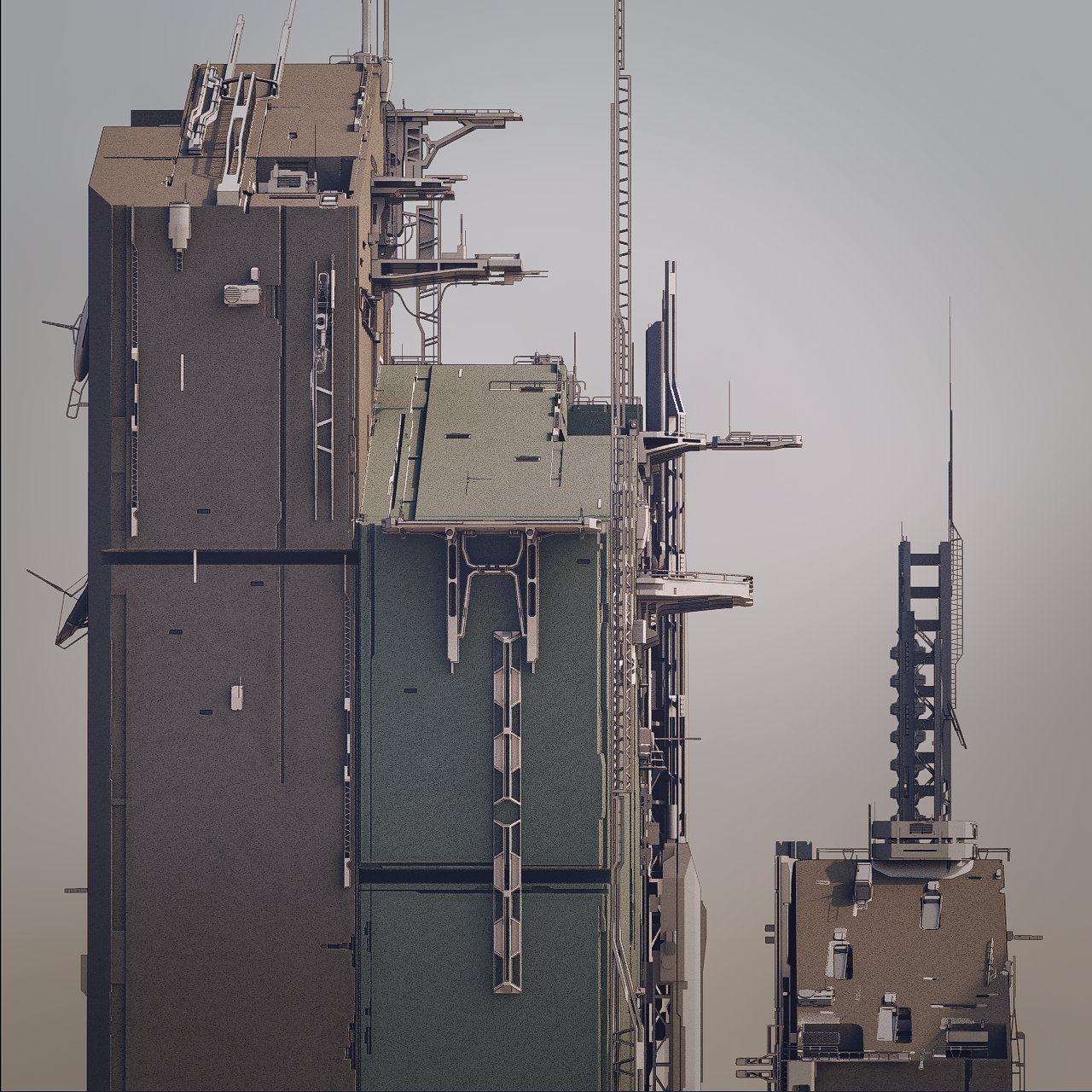
This sharpening filter applies a Gaussian blur to a copy of the original image and then compares it to the original. If the difference is greater than a user-specified threshold setting, the images are (in effect) subtracted giving it a sharper look. Originally developed for darkroom photography is the default blur filter in PSD.
Parameters
Micro Sharpen

A sharpening filter that focuses on enhancing very fine details, often called "micro-contrast." This can add a sense of crispness and clarity to the image without affecting the overall contrast.
Parameters
Ballpoint Pen Style

This shader transforms the image to look like it was drawn with a ballpoint pen. It creates a stylized, hand-drawn look with cross-hatching and line work.
Main
Advanced
Background Pattern
Brush Style

Transforms the image to look like an oil painting. It does this by examining the surrounding pixels and averaging their colors to create a "blocky" or "painterly" effect.
Parameters
Chalk Style

This shader gives the image a stylized look as if it were drawn with chalk on a blackboard. It creates a soft, textured appearance with distinct contour lines.
Main
Background
Color Correction
Sampling
Crosshatch Style

This shader transforms the image to look like a cross-hatched drawing. It uses intersecting lines to create tones and textures, giving the image a classic, illustrative feel.
Main
Color Correction
Kuwahara Style

The Kuwahara filter is a non-linear smoothing filter that preserves edges while reducing noise. It can be used to create a painterly effect by removing textures and sharpening edges.
Parameters
Pointillism Style

This shader transforms the image into a pointillist painting, which is a technique where small, distinct dots of color are applied in patterns to form an image. The effect is achieved by replacing pixels with colored dots.
Parameters
Sketch Style

This shader gives the image the appearance of a hand-drawn sketch, complete with pencil-like strokes and a paper texture. It simulates the techniques used in traditional sketching to create a stylized, artistic look.
Main
Advanced
Background Pattern
Color Correction
Watercolor Style

WIP. This shader simulates the appearance of a watercolor painting, characterized by its transparency, soft edges, and the way colors blend and bleed into one another. It aims to capture the luminous and spontaneous quality of the traditional medium.